
Clash for Android Download and Setup: Clash Meta APK Guide (2026)
Official download: MetaCubeX / ClashMetaForAndroid Releases. This guide uses the maintained Clash Meta for Android. Open Assets and choose an .apk file containing universal if you do not know your phone's architecture; use arm64-v8a if you know the device supports ARM64.
The latest official release checked on October 1, 2026 was v2.11.35. Use the release page for subsequent versions; installation and subscription steps follow below.
Download and install
Prefer the official GitHub release. The two direct APK links are third-party mirrors; do not use them if you need to verify the publisher.
After the APK downloads, open it and follow Android's installer prompts. If Android blocks the install, temporarily allow the browser or file manager you used to open the APK on the Install unknown apps screen. Disable that source permission after installation, then open Clash Meta. Menu wording varies by device; see Android's official guidance.
If the installer reports incompatibility, check that you downloaded an .apk rather than a source archive, then check the architecture. The official universal package is a useful fallback. Export your configuration before uninstalling a differently signed build so that subscriptions and custom rules are not lost.
Add a subscription
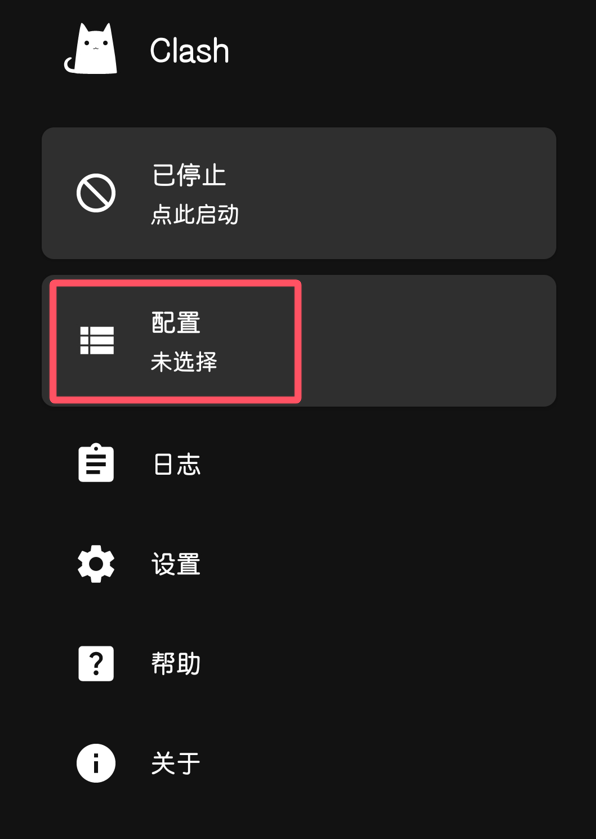
Select Profiles.
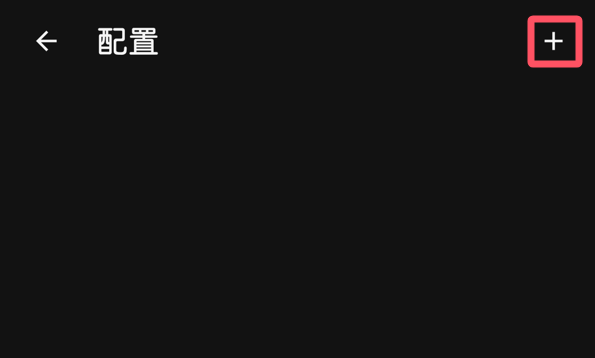
Select the + button in the upper-right corner.
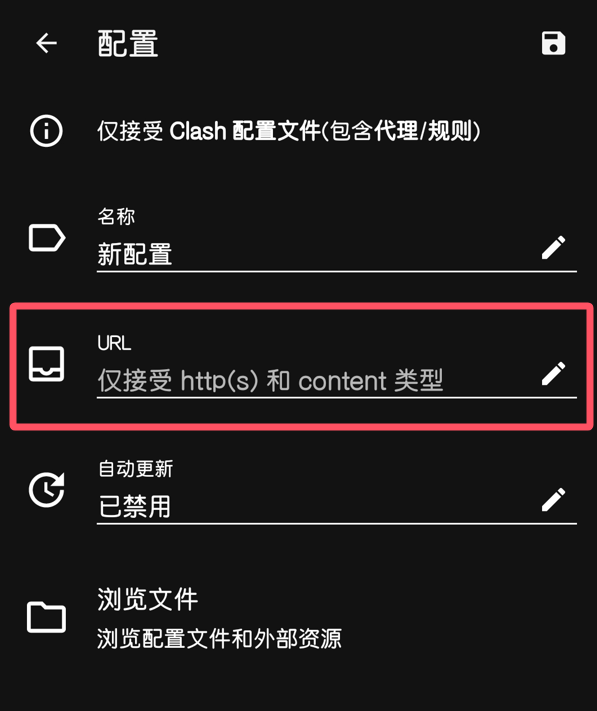
Select URL.
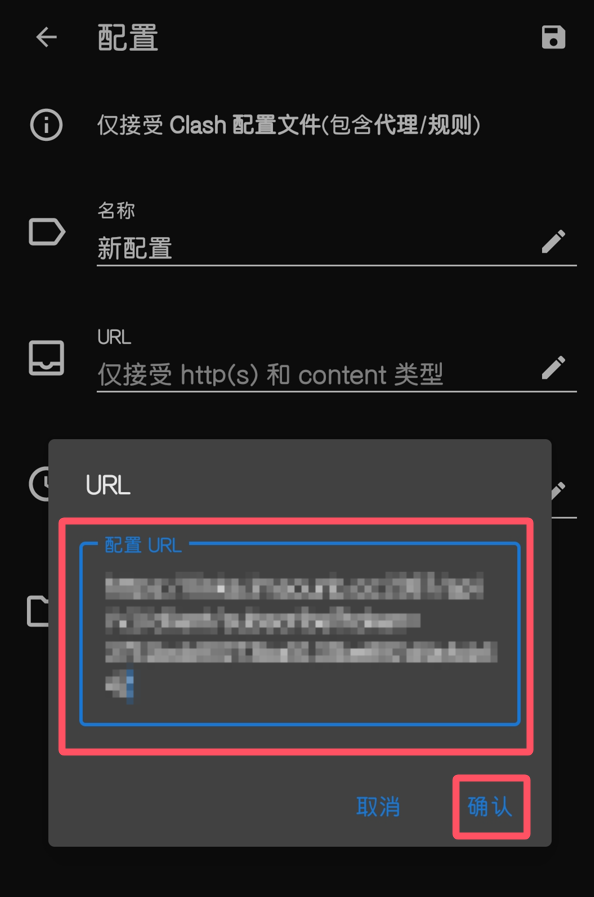
Paste the subscription URL and confirm.
If you do not have a URL, consult the proxy-service selection and review guide.
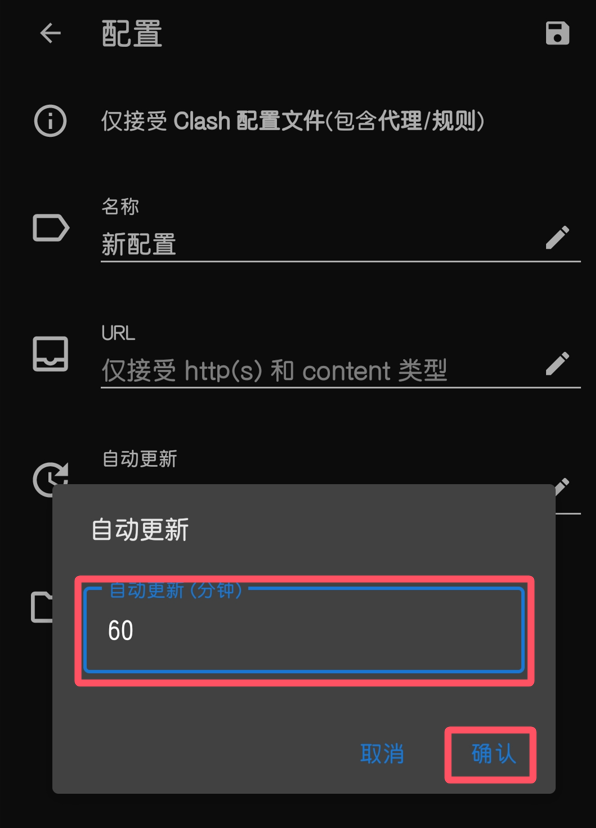
Automatic updates refresh the remote profile; they do not upgrade the APK. A manually entered nonzero interval must be at least 15 minutes. On the first import, when the local interval is 0, the application may use an interval supplied by the subscription response. Check that a manual profile update works, then choose an interval and save; an empty field alone does not establish that updates are disabled.
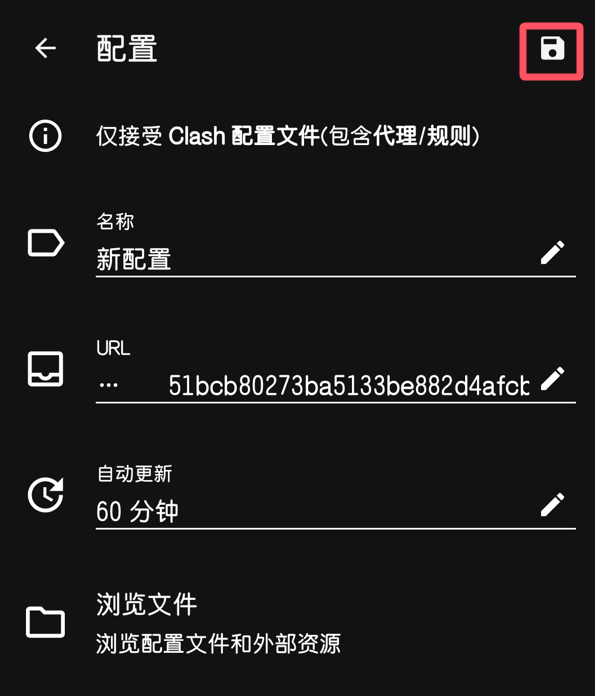
Select the save button in the upper-right corner.
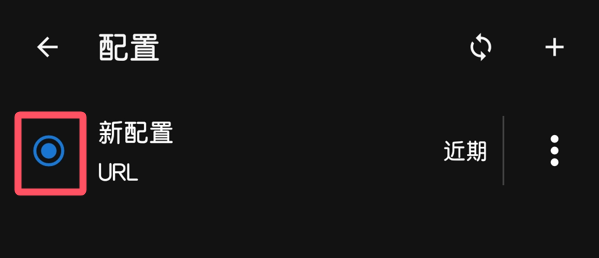
Select the profile you just saved.
Connect
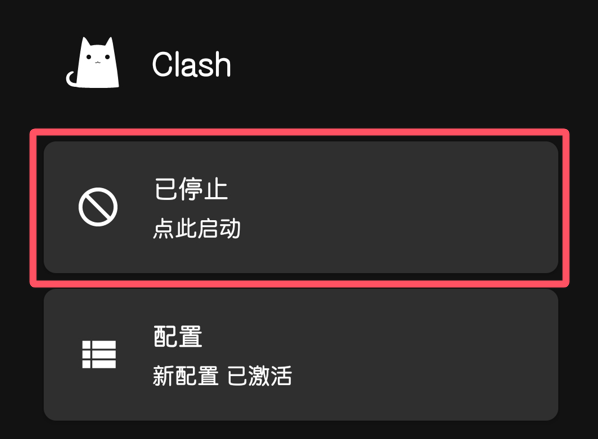
Select the start button.
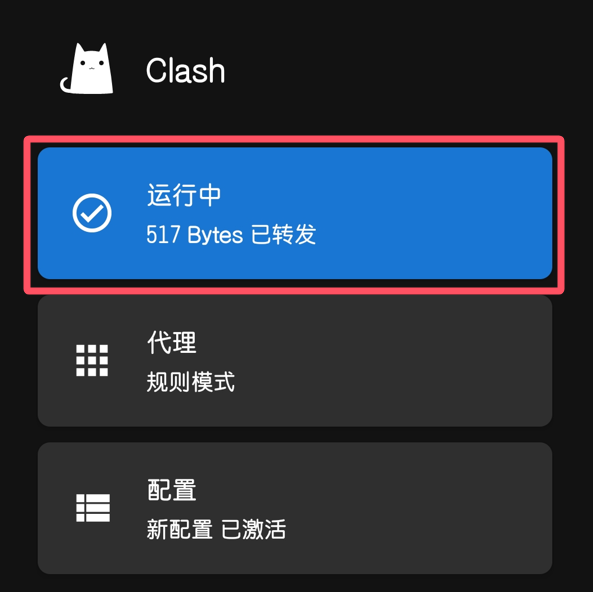
The connection is now configured.
Troubleshoot a failed connection
- No subscription URL: The client does not supply servers. Obtain a compatible subscription from your provider.
- No profiles or servers after import: Check for an incomplete URL or an expired subscription. Do not post subscription credentials in public comments.
- VPN enabled but websites fail: Try another server, then compare Wi-Fi and mobile data. A responsive server does not guarantee access to every website.
Further reading
- Clash Mi for iOS
- Mobile Access Guide for Android and iOS
- Computer Access Guide for Windows and macOS
- GKD Guide: Reduce Repetitive Android Screen Taps
Questions and updates
You may leave a comment with questions. If a reply is delayed, email admin@ermao.net.
For the most recent version of this guide, visit https://ermao.net/en/.